AI assistants for your team and your clients
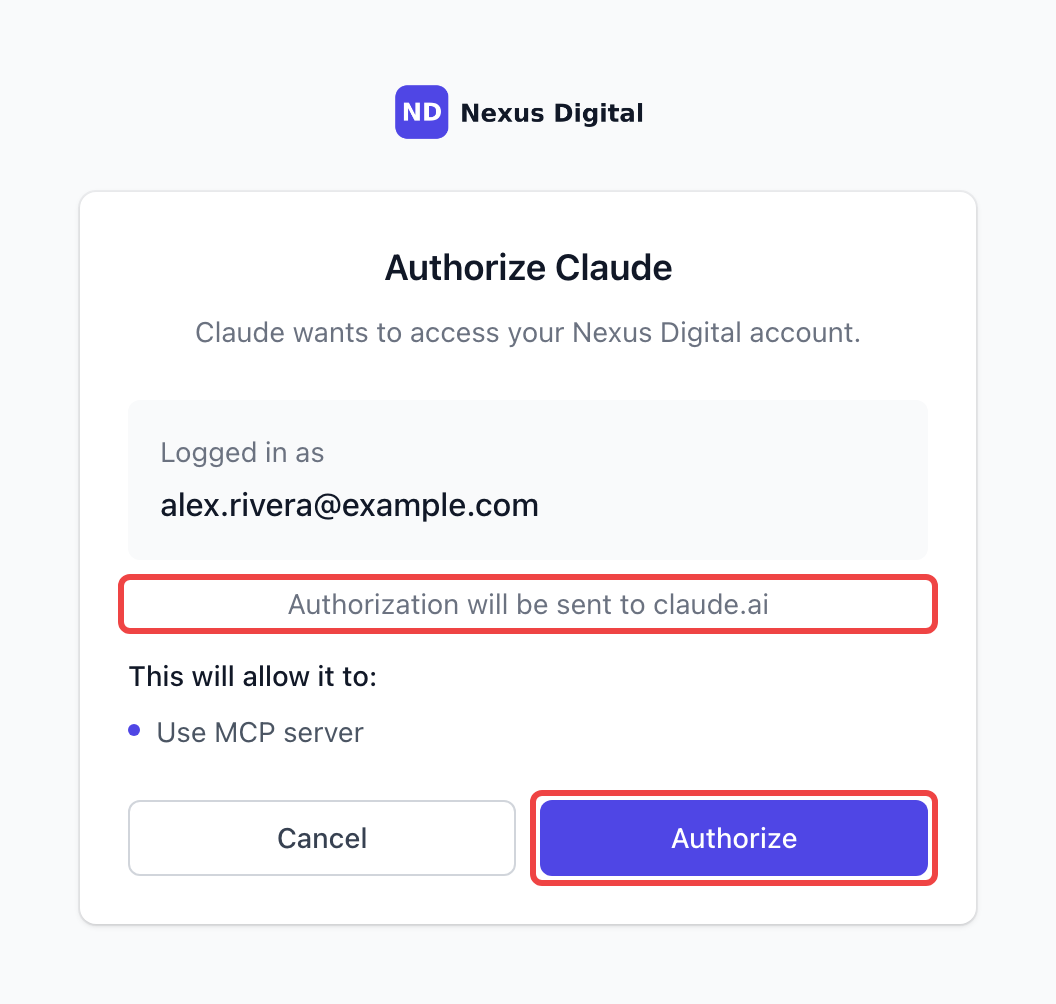
Until now, only portal admins and admins could connect an AI assistant to your portal. Now you can open it up to your team, your clients, or both. Everyone connects with their own login, and Claude or ChatGPT only sees and does what that person can in the portal.
Choose who can connect
Go to Settings → Integrations → MCP server and turn on Team members can connect AI assistants and/or Clients can connect AI assistants under Who can connect. Both are off until you turn them on, and turning a role off disconnects everyone in it right away.
A new AI assistants tab
People you allow find an AI assistants tab in Settings → Profile and account, with the steps for Claude and ChatGPT and the link to copy. Portal admins and admins also see Every connection in this portal there, and can revoke any of them.
Your brand, not ours
The link uses your portal address (your custom domain, if you have one), the approval screen shows your logo, and the AI app knows the connection by your portal name.
What your clients can do
Follow their requests, read your replies and get the files you delivered.
Send a new request with the same form as the portal, including the brand and which plan to use.
Reply on a request, or mark it as completed.
Check their plans and the hours or credits left, and find unpaid invoices with their payment link.
File uploads, paid add-ons, reviews and tips, and payments stay in the portal, and the AI points clients there with a link.
What your team can do
Team members can find, read, update and complete requests, comment and read the activity. With the right role permissions they can also create requests and work with clients and organizations. Role permissions apply to the AI exactly as they do in the portal.
Everyone connected can now also mark a request as completed and read the files posted in a request's comments.
Smaller improvements
Sign up page: when a client signs up on their own, portal admins and admins now get the "You have a new client" email and Slack message too.
Request form conditions: editing or deleting a field no longer deletes conditions that still work.
Tips: the tip payment page only takes cards, and the Tips report is more compact.
Notification preferences: notifications sent only by email no longer show an In app switch.
Pausing a subscription until a date now resumes it at the start of that day in your portal's time zone.
Hours returned to a plan's expired period, for example when you delete a time entry, now pay that period's overage instead of expiring.
Deleted services can no longer be bought from an old checkout link.
How to use the ManyRequests MCP server · How clients connect their AI assistant