Changelog

Follow new updates and improvements to ManyRequests.

AI assistants for your team and your clients
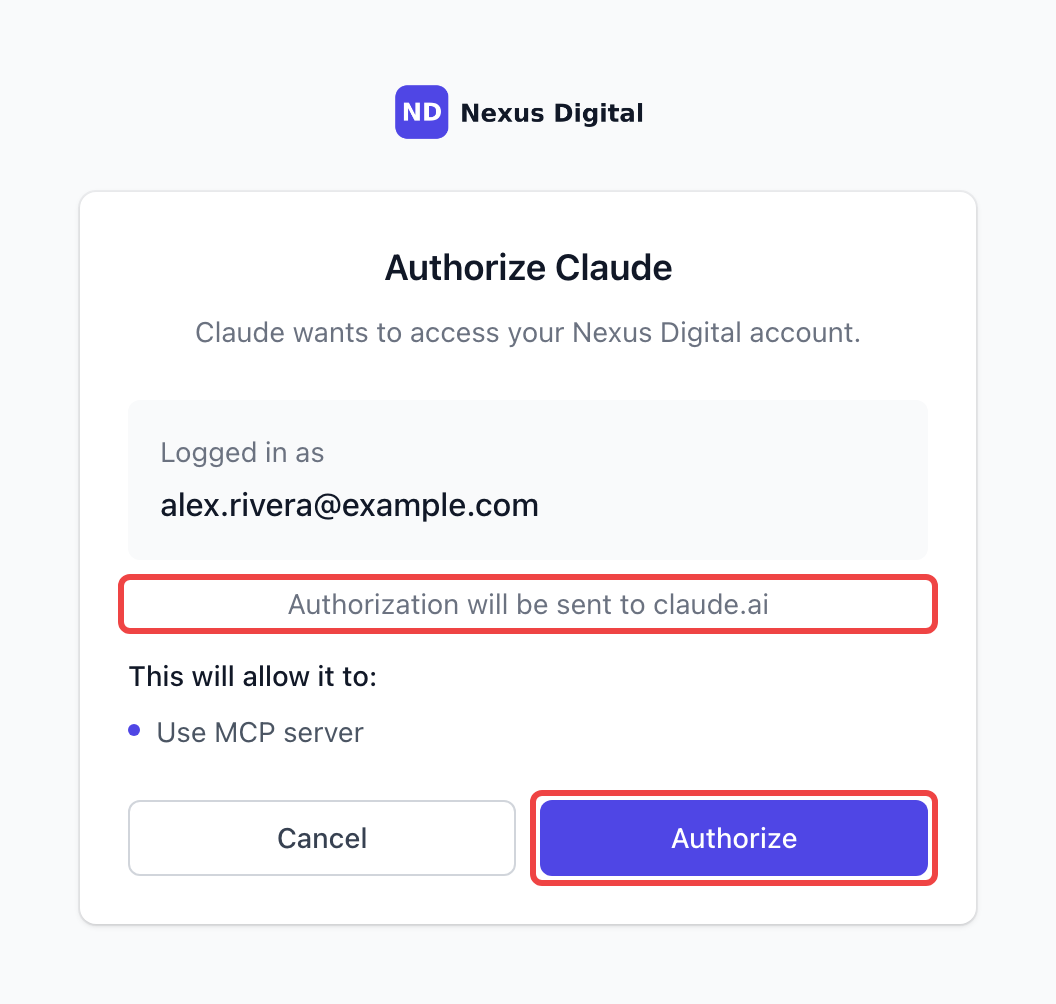
Until now, only portal admins and admins could connect an AI assistant to your portal. Now you can open it up to your team, your clients, or both. Everyone connects with their own login, and Claude or ChatGPT only sees and does what that person can in the portal.

Choose who can connect

Go to Settings → Integrations → MCP server and turn on Team members can connect AI assistants and/or Clients can connect AI assistants under Who can connect. Both are off until you turn them on, and turning a role off disconnects everyone in it right away.

A new AI assistants tab

People you allow find an AI assistants tab in Settings → Profile and account, with the steps for Claude and ChatGPT and the link to copy. Portal admins and admins also see Every connection in this portal there, and can revoke any of them.

Your brand, not ours

The link uses your portal address (your custom domain, if you have one), the approval screen shows your logo, and the AI app knows the connection by your portal name.

What your clients can do

  • Follow their requests, read your replies and get the files you delivered.

  • Send a new request with the same form as the portal, including the brand and which plan to use.

  • Reply on a request, or mark it as completed.

  • Check their plans and the hours or credits left, and find unpaid invoices with their payment link.

File uploads, paid add-ons, reviews and tips, and payments stay in the portal, and the AI points clients there with a link.

What your team can do

Team members can find, read, update and complete requests, comment and read the activity. With the right role permissions they can also create requests and work with clients and organizations. Role permissions apply to the AI exactly as they do in the portal.

Everyone connected can now also mark a request as completed and read the files posted in a request's comments.

Smaller improvements

  • Sign up page: when a client signs up on their own, portal admins and admins now get the "You have a new client" email and Slack message too.

  • Request form conditions: editing or deleting a field no longer deletes conditions that still work.

  • Tips: the tip payment page only takes cards, and the Tips report is more compact.

  • Notification preferences: notifications sent only by email no longer show an In app switch.

  • Pausing a subscription until a date now resumes it at the start of that day in your portal's time zone.

  • Hours returned to a plan's expired period, for example when you delete a time entry, now pay that period's overage instead of expiring.

  • Deleted services can no longer be bought from an old checkout link.

How to use the ManyRequests MCP server · How clients connect their AI assistant
New

Clients can now tip your team, and get a nudge to leave a review

Happy clients can now say thanks with a tip right after a great review, and ManyRequests can remind clients to review requests they haven't rated yet.

Tips after a 4 or 5 star review

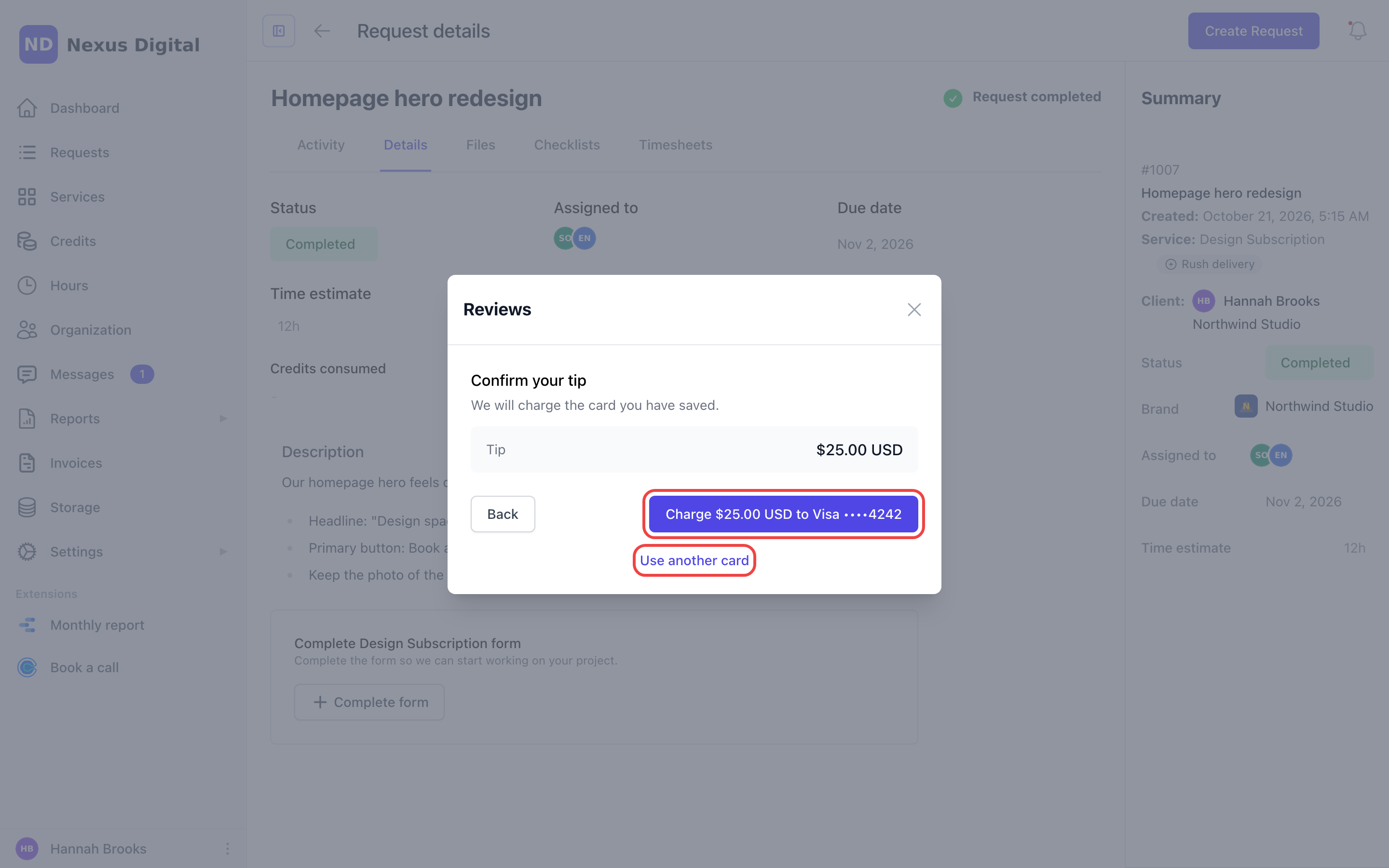
When a client rates a request 4 or 5 stars, the review window offers them the option to add a tip for the people who did the work. It's always optional, and nothing is charged until they confirm the amount.

  • One click with a saved card: clients with a saved card confirm and they're done. Everyone else pays on a payment page, like an invoice.

  • Your team hears about it: portal admins and admins with invoice access get the amount, Stripe's fee and the net amount. The people assigned to the request get a "Nice work!" note.

  • Tips report: see every paid tip in Reports → Tips, with who was assigned at the time, and export it to CSV to share tips with your team.

  • Tax, if you need it: turn on Charge tax on tips to add your usual tax rates. Rules for tips vary by country, so check with your accountant.

Turn it on in Settings → Modules and extensions → Requests, under Request reviews. Tips need the Billing module and Stripe connected.

Review reminders

Turn on Review reminder under Request reviews and choose how many days to wait after a request is completed (5 by default). Clients who haven't reviewed it get one email with a Leave a review button. Only requests completed after you turn it on get a reminder, and clients can turn these emails off in their notification preferences.

Also improved

If you renamed your completed status (to "Delivered", for example), clients are now asked for a review again when a request reaches it.

Learn how to let clients leave a tip · Set up review reminders

New

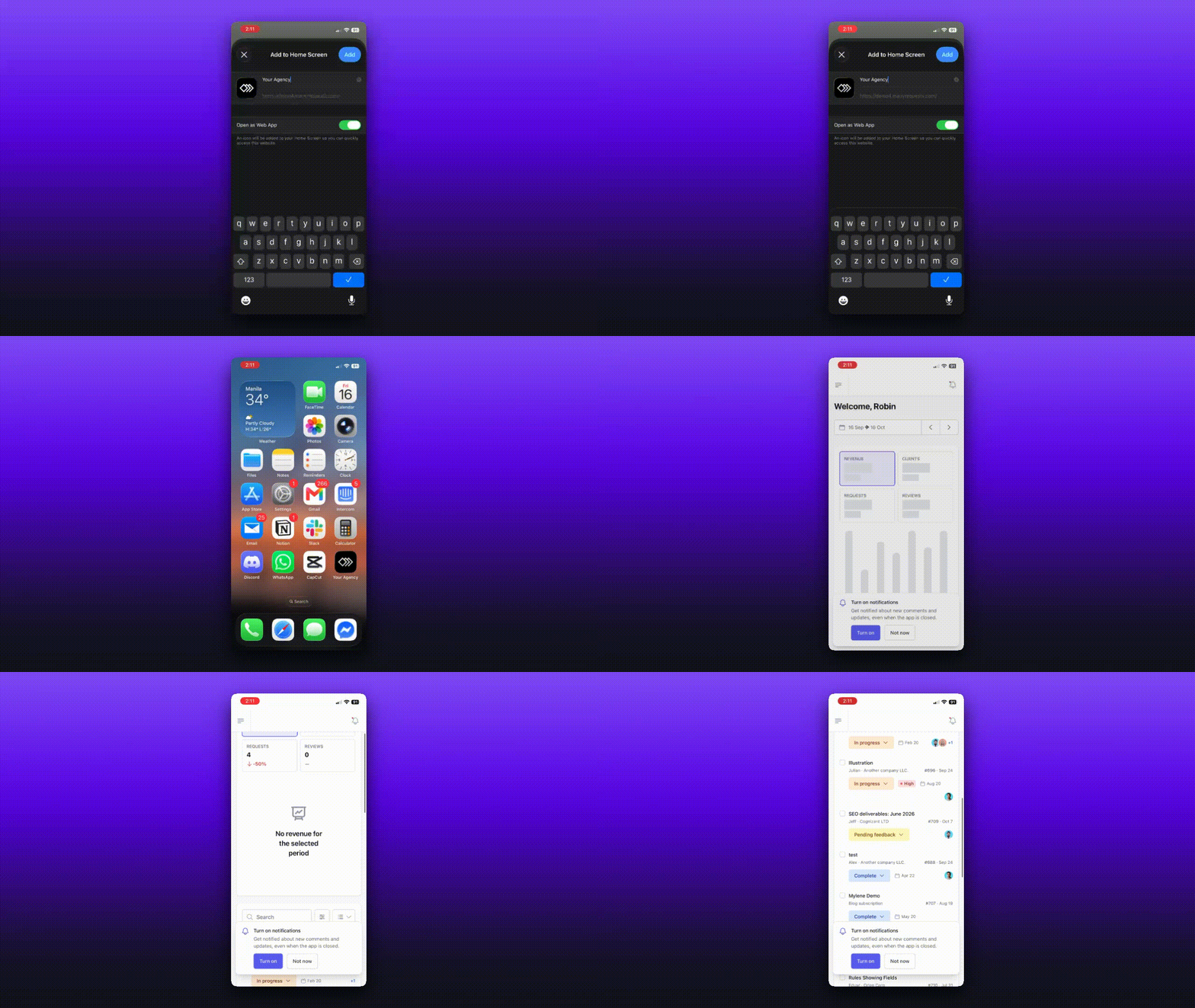
Your portal is now an app, with iPhone push notifications

Your portal can now be installed as its own app, with your agency's branding. Clients and team members can add it to their Home Screen on iPhone and Android, or install it on a computer from Chrome, Edge or Safari. There's nothing to download from an app store and nothing to turn on.

Your name and icon

The app uses your portal name, and an icon made from your favicon (or your light background logo), both set in Settings → Portal. If neither is set, it uses the ManyRequests icon. Your custom domain and subdomain install as separate apps, so share the address your clients actually use.

Push notifications on iPhone

Push notifications now reach iPhones in the installed app (iOS 16.4 or later).

  • People turn them on from the "Turn on notifications" banner, which only shows inside the installed app on iPhone.

  • Push can be switched on or off per device in Settings → Profile and account → Notification preferences, under This device.

  • Android and desktop users who already had push keep it without doing anything.

Built for phones and tablets

Every page has been adapted for smaller screens, from requests and the proofer (now with touch gestures) to messages, invoices, checkout, order forms, reports and settings.

Learn how to install your portal as an app

New

Earlier updates