Require two-factor authentication for your team and clients
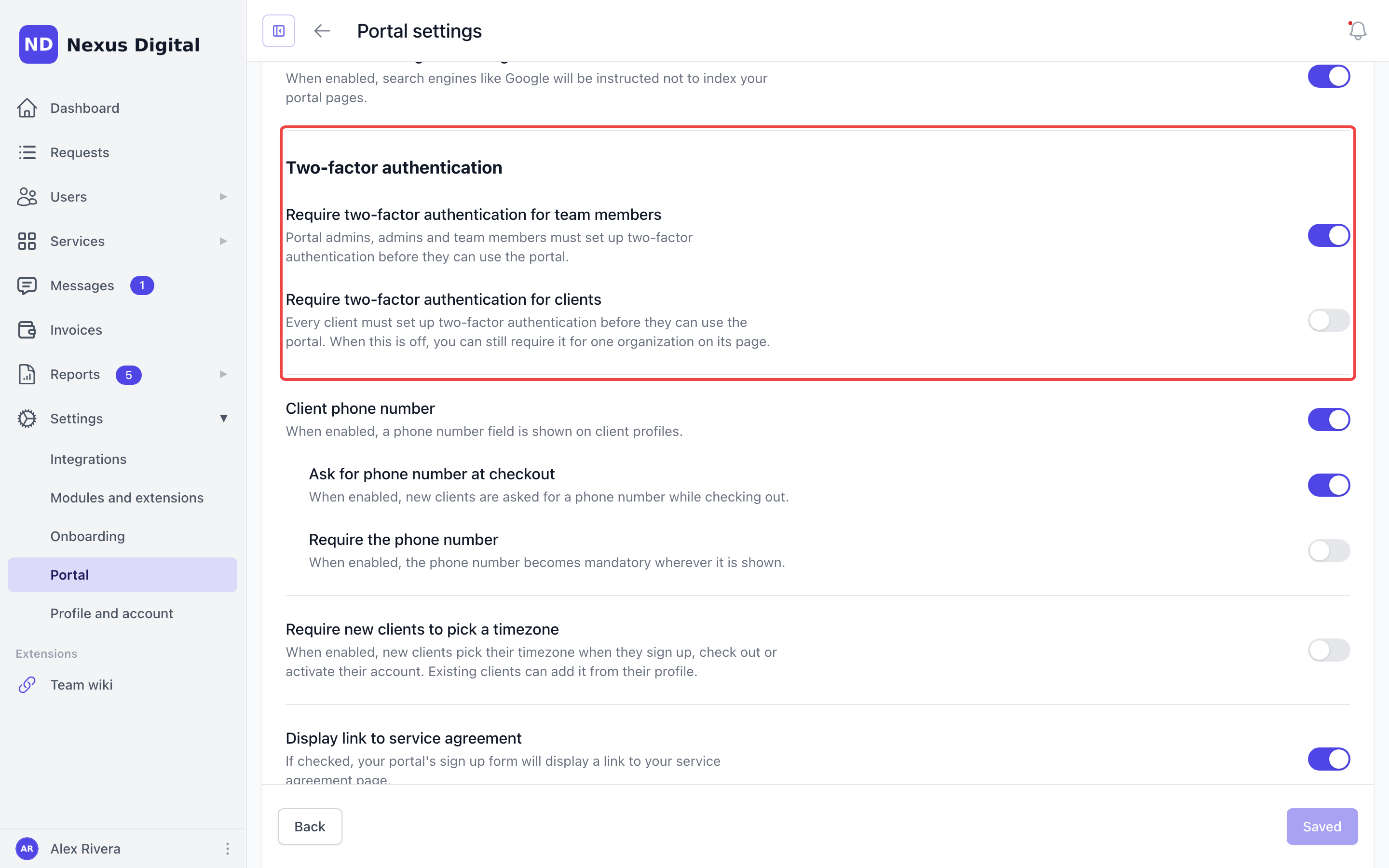
Your portal can now require two-factor authentication (2FA). Turn it on for your whole team, for every client, or only for the client organizations that ask for it. Everyone it covers sets up 2FA before they can use the portal again.
Require 2FA for your team or your clients
Go to Settings → Portal → Advanced and turn on Require two-factor authentication for team members, Require two-factor authentication for clients, or both. Both are off until you turn them on.
Or only for one client organization
On an organization's page, turn on Require two-factor authentication in the details panel. Handy when one client's security team asks for it.
What your team and clients see
Anyone covered who hasn't set up 2FA is taken to their Security tab with a short notice, and stays there until it's on. People who already use 2FA won't notice a thing. API tokens and Zapier keep working.
See who's set up, and help someone who lost their phone
While a requirement is on, a Two-factor column on your Team and Clients lists shows who has turned it on. If someone loses their phone and their recovery codes, the portal admin can click Reset two-factor authentication in the menu on that person's row.
👉 How to require two-factor authentication for your team and clients
Each plan on an invoice is now its own subscription
When you bill several plans on one invoice, or the same plan more than once, each plan line now becomes its own subscription when your client pays. Your client still pays once. After that, each subscription renews, is billed and gets its credits or hours on its own, and you can change or cancel each one separately. You can also add the same add-on under different plan lines.
👉 How to create and send an invoice
Smaller improvements
- Rows per page: changing it on a list now always takes you back to page 1. Before, on some filtered lists it could show an error or only part of the list.